 Skip to content

Best Clipping Software in 2026: 12 Tools for Video, Screen & Content Clipping
| TL;DR: |
Short-form content is still one of the fastest ways to repurpose long videos, webinars, podcasts, livestreams, product demos, and screen recordings. But clipping is not just cutting a file shorter. The strongest clips have a specific job: hold attention, clarify the message, and move the viewer toward the next step.
That is why the best clipping software in 2026 should be judged by more than speed. The right platform helps you capture, trim, caption, resize, export, and organize clips without weakening quality or slowing down your workflow.
At Marketing Media AI, we treat clipping as part of a broader video infrastructure system. If your issue is not the tool but the structure behind the edit, our video editing services and Video Infrastructure Scorecard can help you identify the real bottleneck before you invest more time in production.
What Is Clipping Software?
Clipping software helps you cut, trim, capture, and export smaller sections from a longer video, screen recording, livestream, or gameplay session. It is the practical layer between raw footage and the shorter assets you publish on social platforms, use in tutorials, send to clients, or add to a content library.
Some tools focus on screen capture. Others focus on professional editing, AI-assisted highlight detection, online trimming, or gameplay recording. The right choice depends on whether you are creating social clips, training content, video ads, gaming highlights, or internal business recordings.
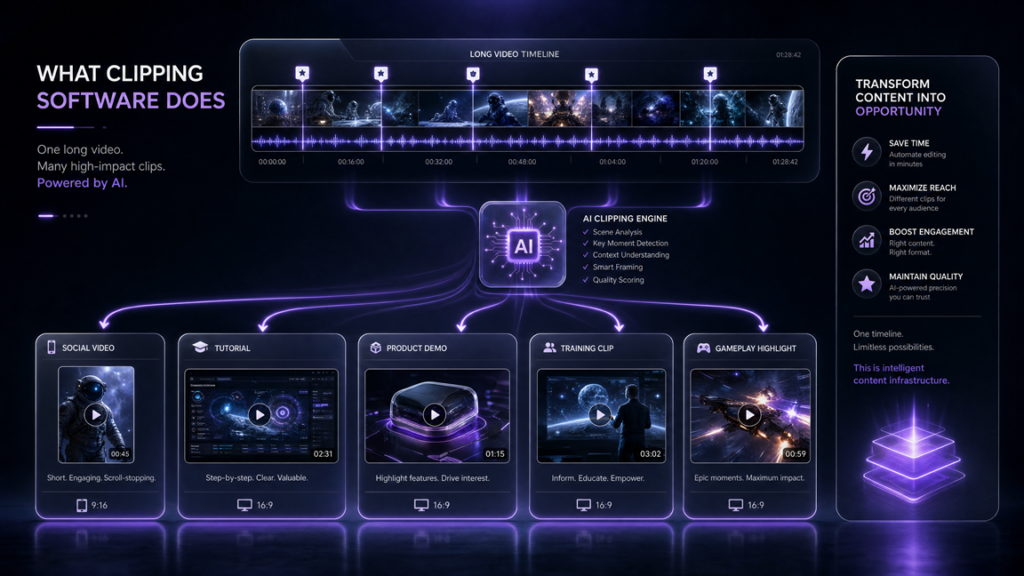
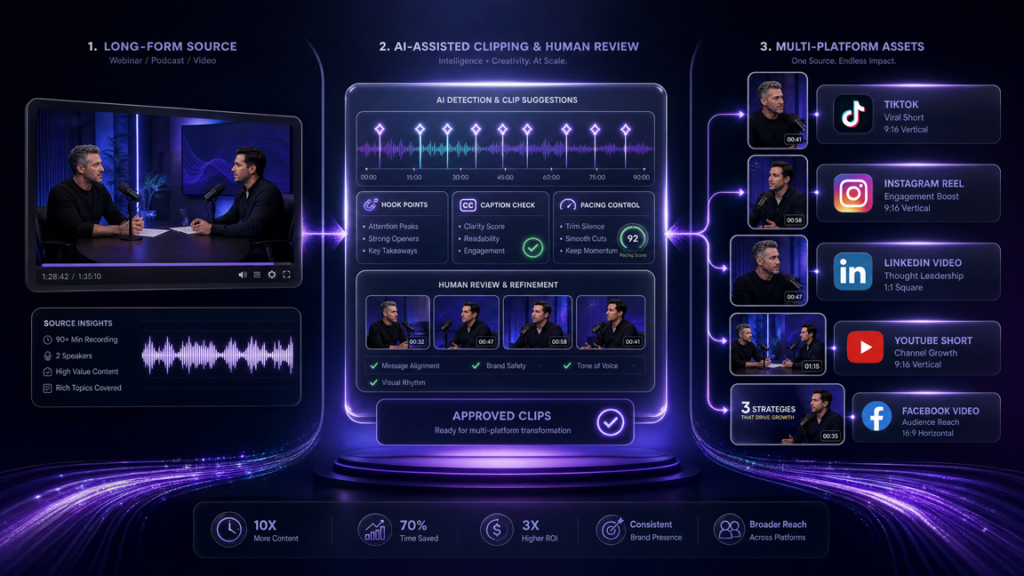
In 2026, many tools include AI-assisted features that can detect highlights, transcribe speech, suggest clips, remove filler, or resize content for different platforms. Those features can save time, but they do not replace strategy. A clip still needs a clear opening, smooth pacing, and a reason for the viewer to keep watching.
Why Creators and Marketers Use Clipping Tools
Creators and marketers use clipping tools because most long-form assets contain multiple smaller pieces of value. A strong clip turns that value into something easier to consume, test, and distribute.
• Repurpose long-form videos, podcasts, webinars, and livestreams into shorter assets.
• Create platform-ready cutdowns for TikTok, Instagram Reels, YouTube Shorts, LinkedIn, and paid ads.
• Capture screen moments for tutorials, demos, product walkthroughs, support content, and training clips.
• Pull stream or gameplay highlights without manually reviewing hours of footage.
• Test different hooks, captions, openings, and content angles faster.
For brands, clipping works best when it is connected to a repeatable workflow. The Video Infrastructure Method is built around that idea: diagnose the structure, pacing, and workflow before adding more output.
Key Features to Look for in the Best Clipping Software
The best clipping software is not always the tool with the longest feature list. It is the tool that fits your production environment, your publishing needs, and the type of content you are trying to create.

• Clean trimming and splitting so clips can be tightened without quality loss.
• Screen recording and capture controls for tutorials, walkthroughs, and demos.
• Captioning, transcription, or text-based editing for faster social repurposing.
• Aspect-ratio presets for Reels, TikTok, Shorts, horizontal YouTube, and ad formats.
• Cloud storage, collaboration, or sharing options if multiple people review clips.
• AI highlight detection when you need to find usable moments inside long recordings.
• Reliable export settings, including MP4 support and quality control for final delivery.
• Workflow fit, because a powerful tool that slows you down may not be the right tool.
| Note: |
Below are 12 of the best clipping software tools in 2026, grouped by practical use case: free recording, professional editing, screen capture, browser-based clipping, AI-assisted repurposing, and gaming highlights.

12 Best Clipping Software Tools in 2026
1. OBS Studio – Best Free Clipping Tool
OBS Studio is best for creators and streamers who need a free, flexible recording setup before clips are edited elsewhere. It is open source and works across major desktop platforms, making it strong for screen capture, livestream recording, and custom scene setups.
Best for: streamers, educators, tutorial creators, and anyone who wants free recording control.
Watch for: OBS is powerful, but it is not the fastest option for simple trimming. If you mainly need quick social clips, pair it with a lighter editor or AI clipping tool.
2. Adobe Premiere – Best for Professional Editors
Adobe Premiere is best when clipping is only one part of a larger edit. It gives editors deep control over trimming, sequencing, audio, color, captions, effects, and polished short-form cutdowns from longer source footage.
Best for: professional editors, brand videos, YouTube content, campaign assets, and high-polish content systems.
Watch for: It can be more than you need for basic screen snippets, quick highlights, or simple social captions.
3. Camtasia – Best for Screen Recording Clips
Camtasia is built for screen recording and instructional video editing. It works well for tutorials, software walkthroughs, training clips, course content, and product demonstrations because recording and editing live inside the same workflow.
Best for: educators, trainers, SaaS demos, onboarding videos, and polished screen-based tutorials.
Watch for: If you only need a fast screenshot or short screen capture, Snagit may be a cleaner choice.
Quick distinction: Camtasia is the stronger choice when the screen recording needs editing, structure, captions, transitions, and a polished final lesson. Snagit is better when speed, annotation, and quick communication matter more than a full edit.
4. Snagit – Best for Quick Screen Clips
Snagit is ideal when you need to capture, annotate, and share screen content quickly. It is useful for feedback, documentation, process explanations, quick tutorials, and support assets where speed matters more than a full editing timeline.
Best for: support teams, educators, marketers, web designers, and anyone who needs visual communication without a heavy editing workflow.
Watch for: It is not the right choice if you need advanced video editing, layered storytelling, or complex social cutdowns.
5. Kapwing – Best Online Clipping Tool
Kapwing is a strong browser-based option for trimming, resizing, captioning, and exporting social clips without installing desktop software. It is especially useful for creators and social media teams that need fast, collaborative edits.
Best for: quick online trimming, captioned social clips, lightweight repurposing, and team-friendly browser workflows.
Watch for: Online tools usually come with free-plan limits, export restrictions, or workflow constraints once volume increases.
6. Descript – Best AI Clipping Software
Descript is one of the strongest tools for AI-assisted editing, transcription, and repurposing. It is useful when you want to edit video through text, pull highlights from longer recordings, create captions, and move faster through podcast, webinar, or talking-head content.
Best for: podcasters, educators, interview-based creators, webinar teams, and anyone turning spoken content into shorter clips.
Watch for: AI can surface usable moments, but human review is still needed to protect context, pacing, accuracy, and brand tone.

7. Clipchamp – Best for Simple Social Media Clips
Microsoft Clipchamp is a beginner-friendly editor for quick social media clips, basic trimming, templates, captions, stock assets, and simple browser or Windows-based editing. It is useful when the goal is speed and accessibility rather than advanced post-production control.
Best for: beginners, small businesses, simple Reels or Shorts, lightweight editing, and users already working inside the Microsoft ecosystem.
Watch for: It is not a replacement for a professional editing suite if you need advanced pacing, complex brand systems, or high-end campaign polish.
8. Gecata by Movavi – Best Lightweight Game Recorder
Gecata by Movavi is built for game recording and livestream capture on PC. It is useful for creators who want a lightweight way to record gameplay moments without building a more complex OBS setup.
Best for: gamers, entry-level streamers, and creators who want simple gameplay capture.
Watch for: It is focused on capture, so you may still need another editor for refined clips, captions, and platform-ready formatting.
9. Bandicam – Best Performance-Focused Screen and Game Recording
Bandicam is a lightweight screen and game recorder known for efficient capture. It is useful when recording performance matters, especially for gameplay, desktop tutorials, webcam overlays, or screen-based content.
Best for: gamers, tutorial creators, and Windows users who want efficient recording with straightforward controls.
Watch for: Its editing workflow is limited compared with dedicated editors, so plan for a separate finishing tool if you need polished social assets.
10. Action! – Best High-FPS Gameplay Recording
Action! is designed for smooth screen and gameplay recording, including high-quality desktop capture, webcam overlays, audio commentary, screenshots, and livestream support. It fits creators who care about recording quality and a clean capture workflow.
Best for: gameplay clips, high-FPS recording, desktop capture, and creators who want a dedicated recording tool.
Watch for: It is strongest at capture. For storytelling, captions, hooks, and final pacing, you will still need a structured editing process.
11. NVIDIA ShadowPlay – Best for NVIDIA GPU Users
NVIDIA ShadowPlay / Highlights is a practical option for gamers using supported NVIDIA hardware. It can capture gameplay moments with minimal friction and is especially useful for instant replay, automatic highlights, and low-interruption recording during play.
Best for: NVIDIA GPU users, gaming highlights, instant replay, and creators who want capture built into their hardware ecosystem.
Watch for: It is hardware-dependent and not designed as a full editing platform. Treat it as a capture layer, not your final production system.
12. Eklipse – Best AI Stream Highlight Clipper
Eklipse is an AI highlight tool built for streamers who want to turn Twitch, Kick, YouTube, or Facebook streams into short-form clips. It helps detect moments, convert clips, and prepare them for TikTok, Reels, and Shorts.
Best for: streamers, gaming creators, and anyone repurposing long streams into short-form highlights.
Watch for: Automatic highlight tools can miss context. Review the clip before publishing so the final version has a clear setup, payoff, and caption flow.
Best Free Clipping Software
If budget is the main constraint, OBS Studio remains one of the strongest free choices for recording and stream capture. Kapwing and Clipchamp can also work well for quick browser-based edits, depending on the limits of the free plan. If you create gaming content and already use supported NVIDIA hardware, ShadowPlay is also worth testing.
The key is not choosing the most popular free tool. Choose the tool that removes the most friction from your actual workflow. A free tool that slows down your editing, exporting, or review process can still cost you time.
Best Clipping Software for Video Creators
For serious video creators, Adobe Premiere, Descript, and Kapwing are the strongest options in this list. Premiere gives the most control, Descript speeds up spoken-content workflows, and Kapwing keeps quick social repurposing simple in the browser.
The bigger strategic issue is what happens after the clip is made. A clip still needs a strong opening, a clear value path, and a reason for the viewer to continue. For a deeper breakdown of how structure affects video performance, read our guide on how to make an effective video ad.
Best Clipping Tools for Social Media Content
Social media clips need more than the right export size. They need a strong first frame, a clear opening line, tight pacing, readable captions, and a simple next step. Kapwing, Clipchamp, Descript, and Eklipse are especially useful for social-first workflows because they reduce the distance between long-form source material and publishable short-form output.
Still, automation should not be the final decision-maker. Let the tool speed up the first pass, then refine the edit around retention, clarity, and platform behavior.
Before choosing the right tool, decide what problem you are actually solving. The wrong software adds complexity, training time, and workflow drag. The right software fits the task and keeps production moving.
How to Choose the Right Clipping Software
The best clipping software depends on what you create, how often you publish, and how much control you need over the final edit.
| Question | Suggested Tool |
| Do you need professional video trimming and full editing control? | Adobe Premiere |
| Do you need screen recordings for tutorials, training, or demos? | Camtasia or Snagit |
| Do you need AI-assisted clipping from long spoken content? | Descript or Kapwing |
| Do you need gaming highlights or stream capture? | ShadowPlay, Eklipse, Bandicam, Gecata, or Action! |
| Do you need quick browser-based social clips? | Kapwing or Clipchamp |
The right choice balances features, ease of use, pricing, export quality, and workflow fit. If the clip is a one-off asset, a lightweight tool may be enough. If clips are part of a larger content engine, you need a more reliable system for intake, editing, review, formatting, and publishing.

Final Verdict: Which Clipping Software Should You Use?
The best clipping software in 2026 depends on your workflow. Use OBS Studio if you need free recording control. Use Adobe Premiere if you need professional editing depth. Use Camtasia or Snagit for screen-based education and documentation. Use Descript or Kapwing when AI-assisted repurposing and faster social workflows matter. Use ShadowPlay, Bandicam, Gecata, Action!, or Eklipse if gaming or stream highlights are your main focus.
But the tool is only one layer. If your clips are not holding attention, the problem may be the hook, pacing, message sequence, or production workflow. Before adding another tool, take the Video Infrastructure Scorecard or explore our AI-assisted video editing services to see whether your content needs a stronger system behind the edit.
You can also visit the Marketing Media AI blog for more guides on video editing, AI marketing, content workflows, and performance-focused production.
