

How to Edit TikTok Videos: Step-by-Step Guide for Beginners
Editing is where raw footage becomes watchable TikTok content. If you want to know how to edit TikTok videos effectively, the goal is simple: capture attention quickly, keep pacing tight, and use sound, text, and visual changes to guide the viewer through the story.
A strong beginner TikTok editing guide comes down to three fundamentals: clarity, rhythm, and contrast.
Those principles apply whether you edit inside TikTok or in a third-party app. The right workflow depends on your goals, content volume, and quality standard. If you want a more polished, brand-led result, a professional video editing service can help you move faster without sacrificing consistency.
📝How to edit TikTok videos: Start with a strong hook, tighten every clip, add sound and text with intention, and polish the final video for clarity, pacing, and retention. The guide below walks through the process from raw footage to a finished TikTok.
Why Editing Matters for TikTok Success
Good editing does more than make a video look better. It improves retention, makes the message easier to follow, and gives viewers more reasons to keep watching, share, or rewatch. Simple choices like jump cuts, better pacing, readable captions, and cleaner visual structure can make a major difference in how long people stay on a video.
Video Editing Terms and Options
Video editing terms are the vocabulary that turns confusion into control. Once you understand the basics, it becomes much easier to edit faster, communicate with an editor, or brief a professional team clearly.
Timeline — the visual track where clips, audio, and effects are arranged.
Trim — remove unwanted frames from the start or end of a clip; essential for tighter pacing.
Cut / Split — divide a clip into parts so you can rearrange or remove sections more precisely.
Transition — a visual bridge between clips, such as a wipe, dissolve, or zoom, used to smooth or stylize edits.
B-roll — supplementary footage layered over the main shot to add context, variety, or emphasis.
Render / Export — the process of finalizing the edit into a shareable video file.
Many creators still use TikTok’s built-in editor for fast, platform-native content. When they need more control over pacing, overlays, captions, and polish, they move to dedicated apps or a more structured workflow. Businesses publishing at scale often benefit from a clearer system or outside editing support.
How to Edit TikTok Videos Inside the App (Step-by-Step)
Step 1. Record or Upload
Tap the + button to open the camera. You can record directly in the app or tap Upload to bring in clips from your camera roll. Use the timer and grid if you are filming inside TikTok, and review your selected clips before moving on. TikTok’s official editing tools are a good starting point if you want to stay inside the platform. This is where you set the foundation for framing, sequence, and early pacing.
Step 2. Trim clips and arrange the timeline
After recording or uploading, open the timeline and trim each clip aggressively. Remove dead space, hesitation, and any moment that does not move the video forward. You can also reorder clips or split them for faster cuts. Tight pacing is one of the biggest differences between an average TikTok and a strong one.

Step 3. Add sound and sync to beats
Tap Sounds to browse trending audio, search for a track, or use your own original sound. Once the audio is in place, line up cuts and transitions with the beat where it makes sense. This instantly makes the edit feel more deliberate and polished.
You should also balance the original audio and added music carefully. If the dialogue matters, keep it clear. If the visual is doing most of the work, the soundtrack can carry more of the energy.
Step 4. Add text, captions, and stickers
Tap Text to add captions, headlines, or supporting phrases. Choose fonts and colors that are easy to read, then use duration controls so each text element appears at the right moment. This is especially important because many users watch with the sound off, and TikTok’s accessibility guidance makes clear how captions improve usability.

Step 5. Effects and transitions
Use Effects and Transitions with restraint. A clean match cut, slight zoom, or well-timed transition usually works better than stacking flashy effects on every clip. The goal is to support the message, not distract from it. If you are editing content for paid promotion, it also helps to understand how to make an effective video ad so the creative and the strategy stay aligned.
Step 6. Save draft or post
When the edit feels clean, tap Next to add your caption, hashtags, and privacy settings. Save a draft if you want to review it later, then preview the video once with sound and once on mute before posting. That approach also lines up well with TikTok-first creative best practices for clearer, more native-looking content.
Advanced Editing Tips for Better TikTok Videos
Cut to the beat: Align key cuts with audio changes when it improves momentum.
Layer text timing: Reveal captions and callouts in sync with the spoken point or visual change.
Use overlays with purpose: Add B-roll or picture-in-picture only when it adds context or emphasis.
Polish color and speed lightly: Small changes in grading or speed can improve energy without making the video feel over-edited.
Best Professional TikTok Video Editing Service
If you want a more hands-off process, a professional TikTok video editing service can help with tighter cuts, cleaner captions, stronger hooks, and a more consistent brand look. That matters even more when you are producing content regularly and need quality control, fast turnaround, and a repeatable workflow.
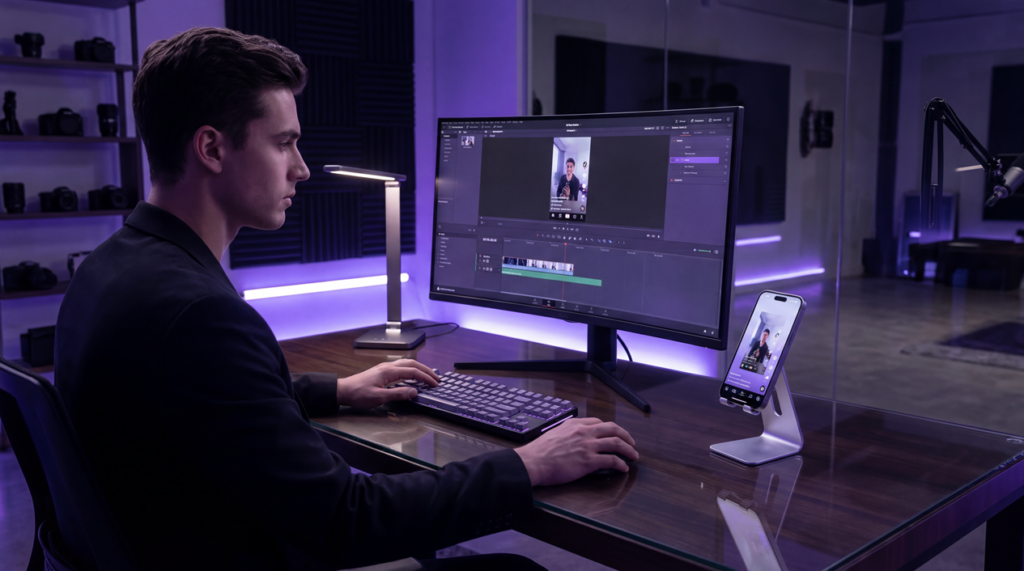
TikTok Editing Tips
📝 Things to Keep in Mind
Aspect ratio: Edit in 9:16 so the video fills the screen naturally. TikTok recommends vertical-first creative basics for stronger native performance.
Captions: Use clear, readable captions because many viewers watch on mute.
File size and length: Keep the export clean and efficient; shorter, tighter videos usually perform better.
Brand consistency: Reuse visual patterns, hooks, and tone so your content feels recognizable.
📝 Best Third-Party Apps for Editing TikTok Videos
|
App |
Price |
Platform |
Best for |
|---|---|---|---|
|
Free, with paid features |
iOS, Android, Desktop |
Quick effects and TikTok-style transitions | |
|
Freemium |
iOS, Android |
Simple trimming and text overlays | |
|
Free |
iOS, Android, Desktop |
Multi-track editing and speed ramps |
📝 Common Editing Mistakes to Avoid
Overlong intros that delay the payoff.
Text that is too small, too fast, or too close to the screen edges.
Audio levels that make speech hard to understand.
Effects that overpower the message instead of supporting it.
Final Tips to Make Your TikTok Videos Stand Out
The formula is simple: start with a strong hook, cut with intention, and keep testing what holds attention. The better your pacing, clarity, and structure, the easier it is for viewers to keep watching and take action. For broader strategic context, read Why Video Marketing Is So Powerful. That is what turns a TikTok from a quick post into content that actually performs.